Play Single Player Offline
0. Install prerequisites
- Your system must be running Windows 10+ and have PowerShell enabled (the latter should already be on by default for standard Windows installations)
About Windows 7 and Linux patching
While we have patching steps for Windows 7 and Linux in this guide, the preferred platform remains Windows 10+ due to the various dependencies involved
- Install Git and add it to PATH when it asks you to during setup
- Install Shadowrun Chronicles: Boston Lockdown
Check Your Game Client Version
Only the Steam version with client version 23.3.28073.265425 is supported (the last publicly released game client)
To check your game client version:
- Launch the game
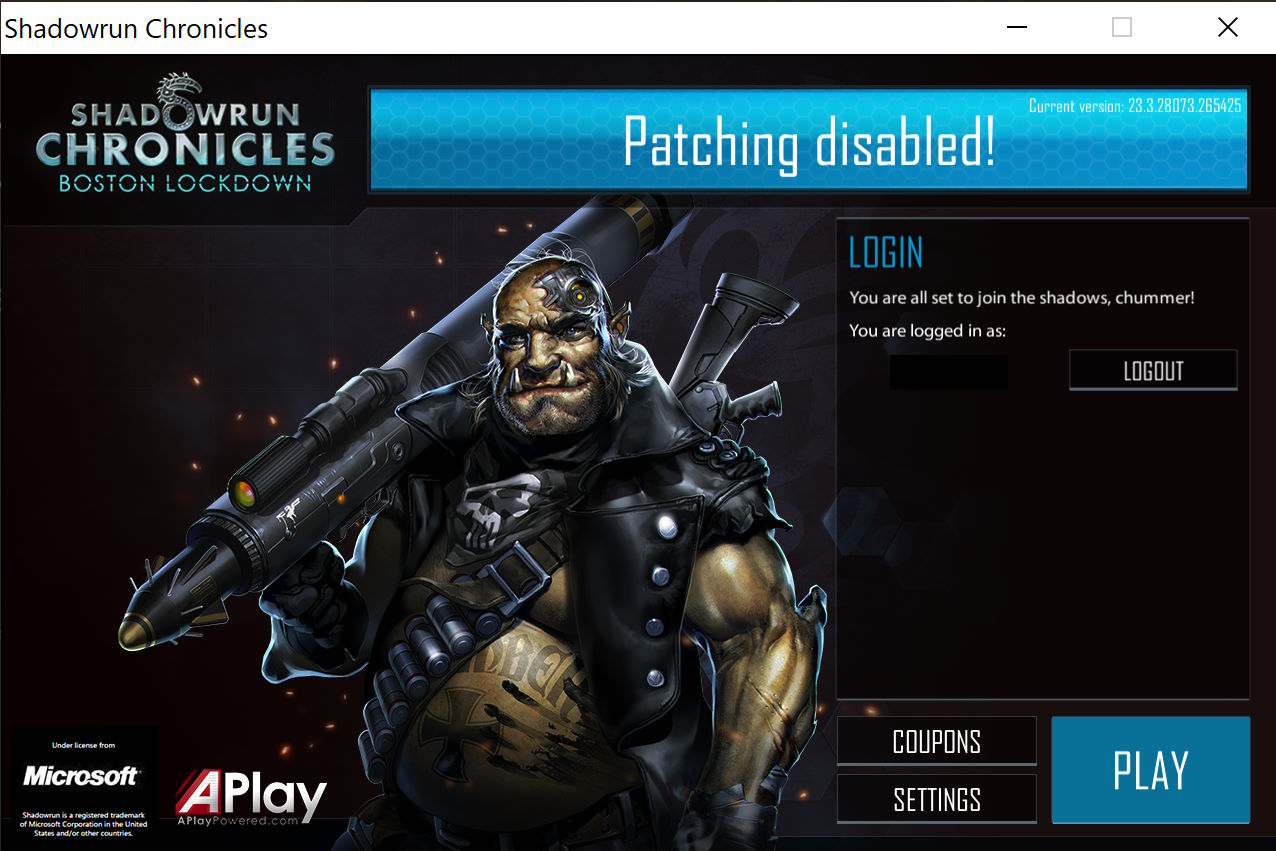
- Check if the client version is correct on the top right of the blue banner on top of the launcher (the area where it says "Patching Disabled"). It should look like this:

Note: If you launch the game and see the below screen, this means you are using an incorrect Early Access version of the game client and need to use the correct game client version files to play the game. 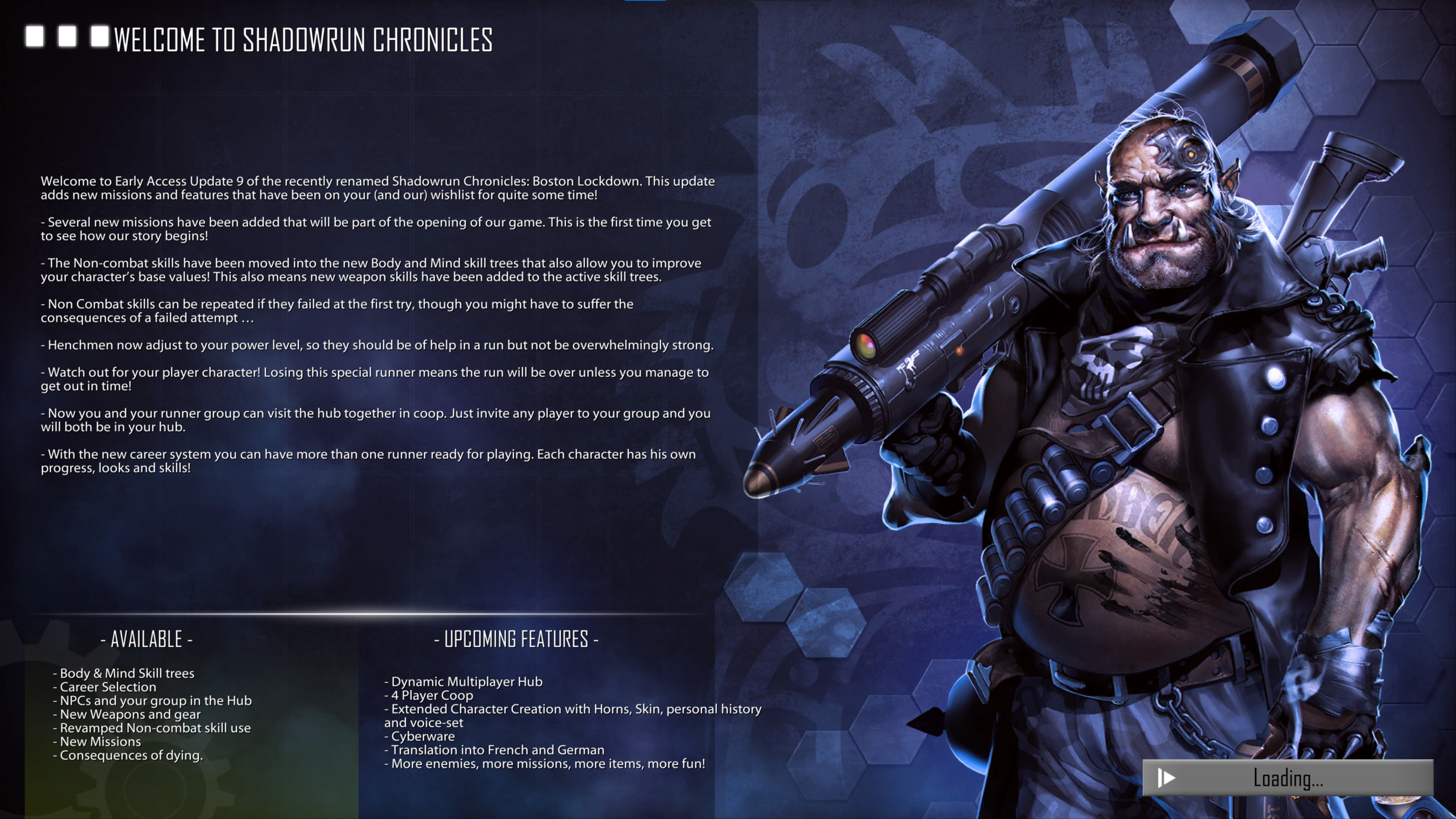
Check the Path used in Commands
Note: In this guide, the game's installation path is assumed to be "C:\Program Files (x86)\Steam\steamapps\common\ShadowrunChronicles".
If you installed the game elsewhere, replace the path in the commands where this path is used with the one of where you installed the game
Do not install into Restricted Folders
Do NOT install the game in a restricted folder like "C:\Program Files" or "C:\Windows" otherwise patching will fail. The default Steam installation directory works without issues. If you are not using a Steam installation, install the game in a normal unprivileged folder such as in your Documents folder.
- Install .NET Framework 4.8 Developer Pack (needed for
MSBuild.exeused by the C# service)
1. Clone the server repository
- Open a PowerShell window in the folder where you wish to install the server - this can be done by SHIFT+Right clicking in the folder from Windows Explorer and choosing "Open PowerShell Window here" or from the Windows Explorer menu "File->Open Windows PowerShell" within the folder.
- From PowerShell run the commands below
git clone https://github.com/BostonUnlocked/BostonUnlockedServer
cd BostonUnlockedServer
2. Extract required game resources
The local server needs a few DLLs, static-data JSON, and StreamingAssets copied out of your game installation.
Run:
powershell -ExecutionPolicy Bypass -File .\extractresourcesfrominstallation.ps1 -GameRoot "C:\Program Files (x86)\Steam\steamapps\common\ShadowrunChronicles" -InstallPythonDepsThis writes into:
server/src/Dependencies/(DLLs)server/static-data/(JSON)server/StreamingAssets/(copied folder)
INFO
If you move/reinstall the game, re-run the extractor.
3. Patch the client to point at your server
The game client reads its endpoint hostnames from:
<GameRoot>\Shadowrun_Data\resources.assets
The patch tool executable is located below, you can run it by double clicking it or via command line. We will use the latter method in the next step:
clientsetup/patch_embedded_configs.exe
Patch for fully local single player server (127.0.0.1)
Run the following command:
.\clientsetup\patch_embedded_configs.exe --asset "C:\Program Files (x86)\Steam\steamapps\common\ShadowrunChronicles\Shadowrun_Data\resources.assets" patch --host 127.0.0.1Linux and Windows 7 patching
To patch the game on Linux and Windows 7, the underlying python script would need to be used instead of the patch tool executable:
- Install Python 3
- Follow the steps here to install the requirements.txt in the
./tools/folder - From terminal/CMD, run
python.exe ./tools/path_embedded_configs.py --asset "C:\Program Files (x86)\Steam\steamapps\common\ShadowrunChronicles\Shadowrun_Data\resources.assets" patch --host 127.0.0.1Check the IP/URL in the command
- 127.0.0.1 is the IP for localhost. Use this to play offline on your local system specifically. If you are connecting to an online multiplayer server, this IP/URL should be the public IP or hostname of the server
- The tool creates a backup next to the asset (by default
resources.assets.bak).
WARNING
--assetis a global flag, so it must come beforepatch/restore.
- Alternatively, if you run
python.exe ./tools/path_embedded_configs.pyIt should ask you the path for resources.assets and the IP/URL separately
Restore to connect to the normal/online servers again
If you patched to 127.0.0.1 and want to revert back to the original server URL in the game files, run:
.\clientsetup\patch_embedded_configs.exe --asset "C:\Program Files (x86)\Steam\steamapps\common\ShadowrunChronicles\Shadowrun_Data\resources.assets" restoreWARNING
--assetis a global flag, so it must come beforepatch/restore.
INFO
To access the patching tool help, run:
.\clientsetup\patch_embedded_configs.exe --help
.\clientsetup\patch_embedded_configs.exe patch --help
The same options work with the Python script version mentioned in the Linux/Windows 7 patching instructions
4. Run the local server
Start the server (this builds the C# host and launches it):
powershell -ExecutionPolicy Bypass -File .\server\start_localserver.ps1Defaults ports:
- HTTP bind host:
0.0.0.0 - HTTP port:
80 - APlay port:
5055 - Photon port:
4530
INFO
If port 80 fails to bind, run your PowerShell terminal as Administrator.
5. Run the game and connect to the server
Start the game normally, connect to the server as you would normally and play!
Enable DLC and Check Chat Commands
- Once you launch the game for the first time, don't forget to Enable DLC.
- Global Chat Commands (and if you are an admin, Admin Global Chat Commands) are available to you once you login to the game.
Server Status Page
A server status page can be accessed by opening the server's /URL in a browser (HTTP-only for now, so start the address with HTTP in your browser and HTTPS warnings when accessing it are normal): 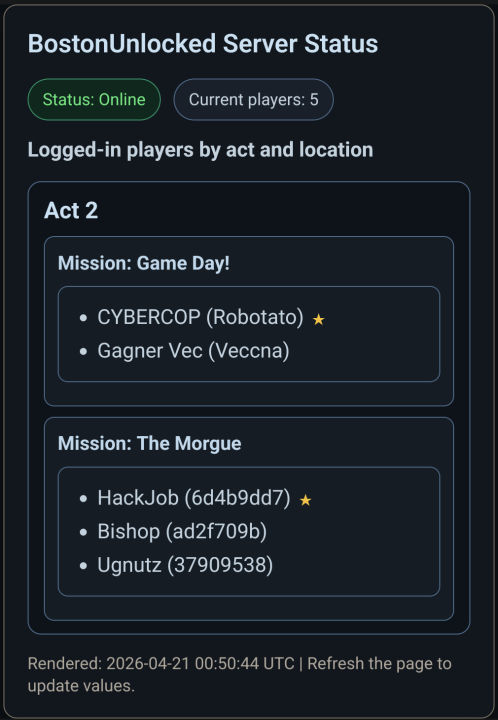
Update regularly
Make sure to regularly update your server to have the latest bugfixes and improvements!
Non-Steam Login
This section covers additional steps for non-Steam setup and login.
Follow these Instructions after completing the Steps above
These steps are in addition to the other steps detailed above, do not skip straight to this section.
Non-Steam Players Only
Do not follow this section if you own the game on Steam and are launching it normally via Steam. Insisting on doing so will prevent the game's normal Steam login and you will lose access to the characters on your Steam profile until you restore Steam login.
Restoring Steam Login
If you accidentally followed this section and can't Steam login to the game anymore or wish to switch back to your Steam profile from a non-Steam profile:
- Delete
LauncherConfig.xmlin the root of your game installation folder (whereshadowrun.exeis located). - You can now Steam login normally and recover access to the characters on your Steam profile.
Enable non-Steam Login
- Download LauncherConfig.xml from the official repository.
- Place
LauncherConfig.xmlin the root of your game installation folder (whereShadowrun.exeis located).
INFO
Shadowrun.exe is located in the root of your game installation folder:
<GameRoot>\Shadowrun.exe
where <GameRoot> refers to where you installed the game.
INFO
This step can be done with Steam game client files to create an alternate non-Steam profile if you wish but while this is enabled you will not have access to your Steam profile characters. See the warnings at the start of this section for more information.
Non-Steam Account Creation and Login
If you are attempting to login without having a Steam instance running:
- Ensure you enabled non-Steam Login as per the instructions above.
- Enter an email address and password to create a non-Steam account.
- When the launcher asks you for a game key, enter "SRO-GAME-KEY".
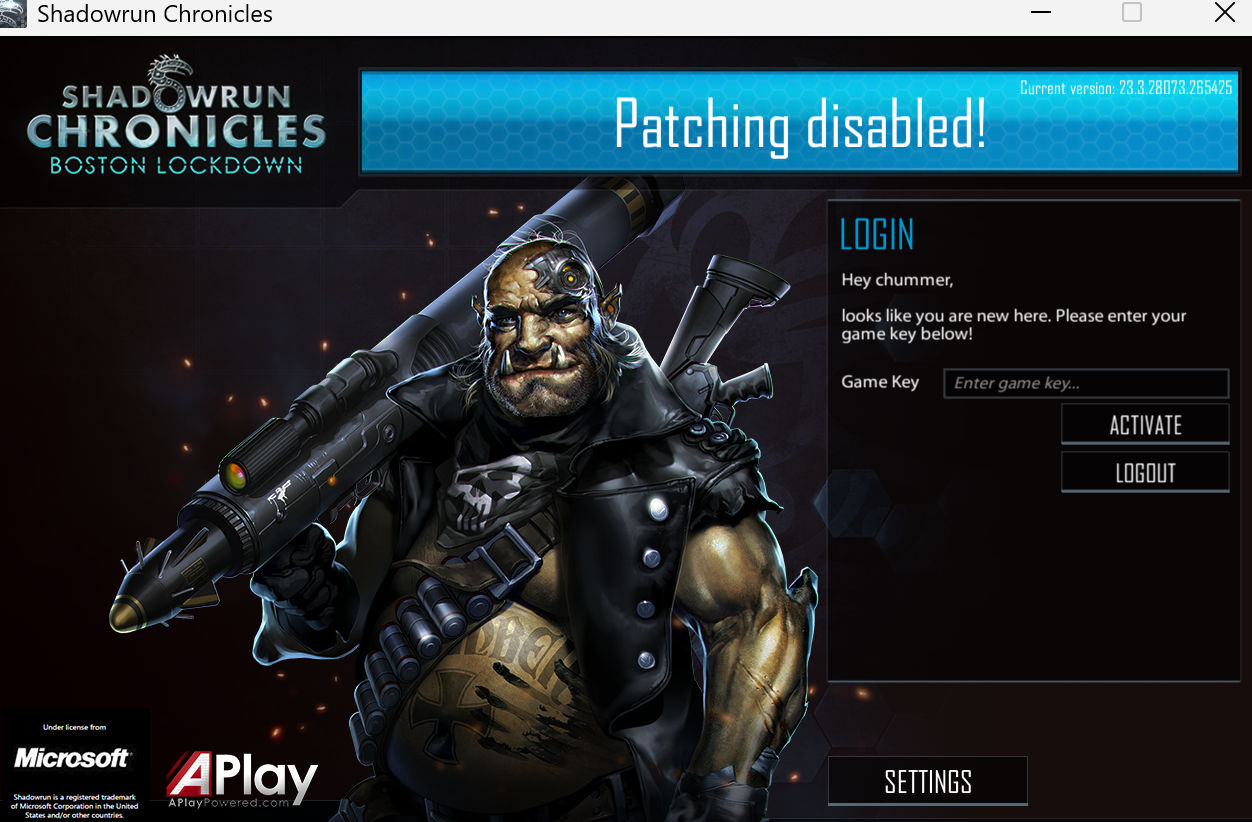
- You can now login using the credentials you created in the previous steps.
No password recovery
Non-Steam account passwords cannot be reset and email addresses are not verified. If you forget your password, you will be permanently locked out of your account. Please choose and record your login credentials carefully!